

How to Troubleshoot Golf Simulator Launch Monitor Wi-Fi Connection Issues
A systematic three-layer diagnostic approach to isolate device, network, and software problems
Golf simulator connection failures often mix launch monitor hardware, computer network settings, and simulator software permissions into a confusing tangle. When Wi-Fi won't connect, users tend to restart devices or reinstall software repeatedly, but without a proper diagnostic sequence, these actions waste time and mask the real problem.
The goal is not generic "try restarting" advice. A good troubleshooting process separates device layer, network layer, and software layer so you can pinpoint the fault and fix it with minimum steps.
Confirm the connection architecture before troubleshooting. The way your launch monitor, router, computer, and simulator software connect determines possible failure points.
1. Build a Three-Layer Diagnostic Model
Simulator Wi-Fi involves three independent but interdependent layers, each of which can fail separately.
- Device layer: Is the launch monitor's Wi-Fi module working and broadcasting?
- Network layer: Is the computer on the correct local network? Does the monitor have a valid IP address?
- Software layer: Can the simulator software access network devices through the OS firewall?
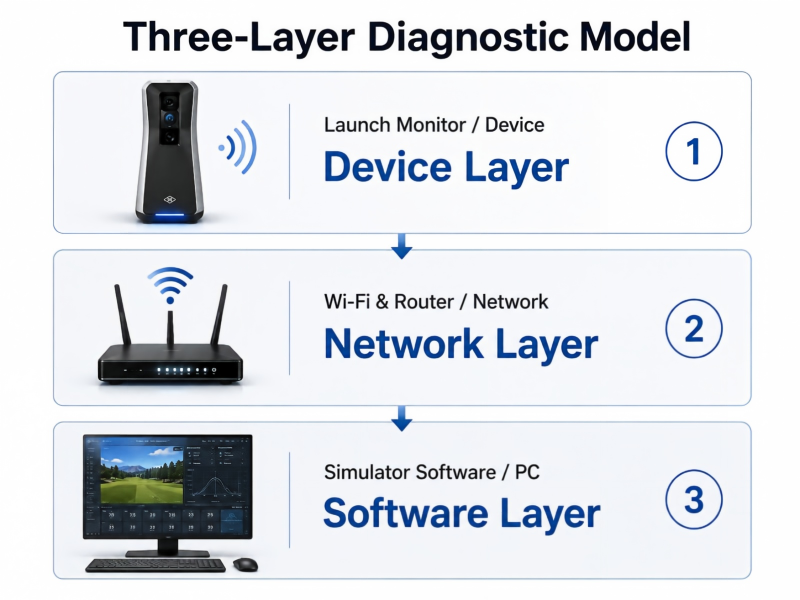
The three-layer diagnostic model isolates device, network, and software problems to eliminate guesswork
Most users change settings across all three layers simultaneously, making it impossible to know which action solved the problem. The correct approach is start at the device layer, verify each layer sequentially, change only one variable at a time.
2. Layer One: Confirm Launch Monitor Hardware Status
Before checking any network or software settings, confirm the device itself can start and enter a connectable state.
- Check that power and Wi-Fi indicator lights match the manual description.
- Return the launch monitor to standard startup state—do not attempt connection while in standby or power-save mode.
- Open the device's companion app (usually manufacturer-provided standalone software) and confirm the monitor is detected.
- Record the firmware version, signal strength, and connection mode shown in the companion app.
- If the companion app cannot connect, the problem is in the device layer; if the companion app works but simulator software cannot connect, the problem is in the software layer.
Do not upgrade firmware without recording the current version. If the problem appeared recently, a firmware upgrade may erase important rollback paths, and newer versions may not be compatible with all old network configurations.
3. Layer Two: Verify Computer Network Configuration
Even when launch monitor hardware works normally, incorrect network environment can block connection establishment.
Wi-Fi connection typically requires the launch monitor and computer to be on the same local network (same subnet), not relayed through the internet or cloud services. Many connection failures happen because the computer is connected to the wrong Wi-Fi network, or network configuration isolates devices in different VLANs.
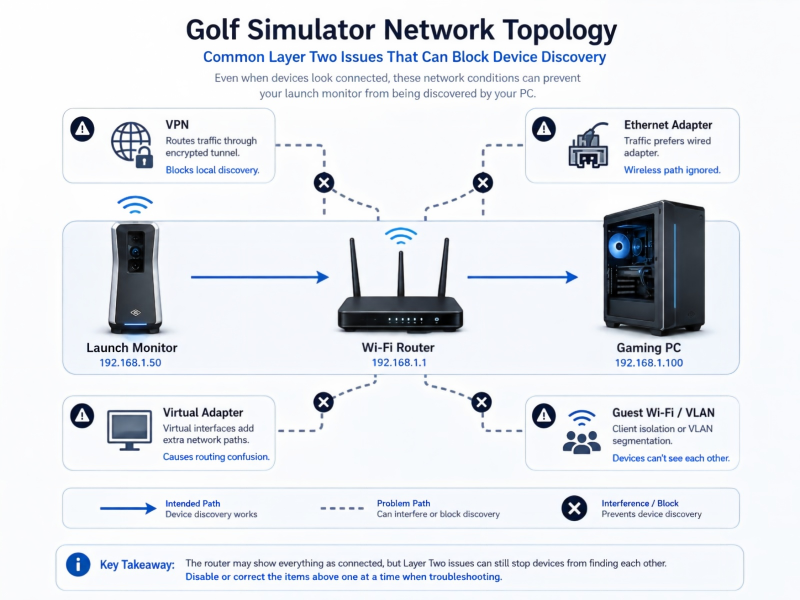
VPN adapters, guest networks, and VLAN isolation can block local device discovery even when Wi-Fi appears connected
Network Environment Checklist
- Confirm the Wi-Fi network name the computer connects to exactly matches the network name the launch monitor uses.
- Temporarily disconnect all other network adapters on the computer: wired Ethernet, VPN connections, virtual machine networks, Bluetooth networks.
- Open computer network settings and record local IP address, subnet mask, and default gateway.
- Access the router admin interface (usually the default gateway address), view connected device list, confirm whether the launch monitor appears and is assigned an IP address.
- Check if the router has AP isolation, guest network isolation, or inter-device communication blocking enabled—these features prevent local devices from discovering each other.
The hidden killer in most home networks: VPN and virtual adapters.
Even when VPN is not actively connected, virtual network adapters can change the system's default routing table, preventing simulator software from correctly addressing local devices.
4. Layer Three: Check Software and Firewall Settings
When device hardware is normal and network connection is confirmed, remaining problems are almost always in OS firewall or software permission configuration.
- Confirm simulator software is added to the OS firewall allow list. In Windows, open "Windows Defender Firewall" → "Allow an app through firewall" → verify both private and public network checkboxes are checked for the simulator software.
- Temporarily disable third-party antivirus and security suites. They often have independent network protection modules that can intercept local device communication even when Windows Firewall is correctly configured.
- Check if other programs are occupying the device connection. If you previously opened the companion app and left it running, it may monopolize the communication channel to the monitor. Close all related programs and launch only the simulator software.
- View the software's connection log or debug output. Many simulator programs provide connection logging in settings or advanced options, recording IP addresses, ports, and failure reasons the software attempted.
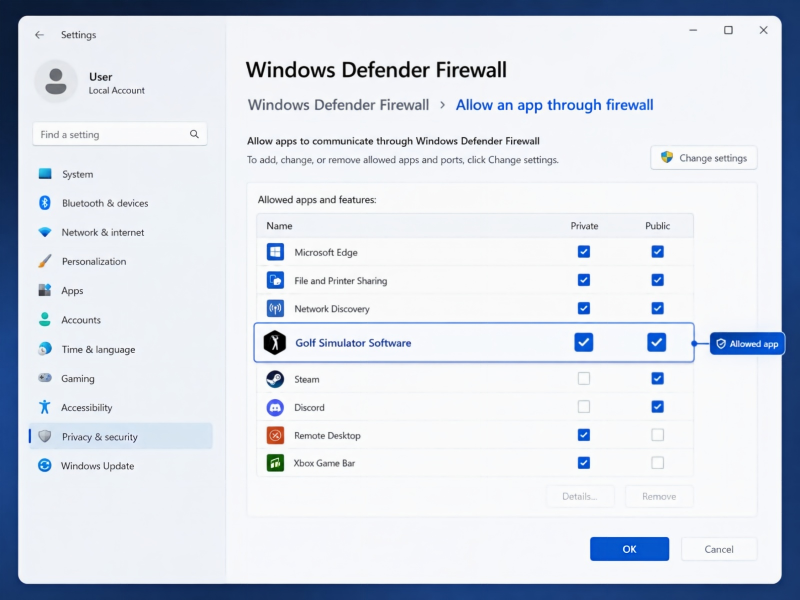
Ensure simulator software is allowed through both private and public network profiles in Windows Defender Firewall
5. When to Consider Wired Connection or Professional Network Setup
Wi-Fi offers convenience and flexibility, but it introduces extra instability factors: signal interference, device roaming, router load. For simulator applications requiring low latency and stability, wired Ethernet is often the more reliable choice.
When to Switch to Wired Connection
- The simulator room is far from the router with unstable Wi-Fi signal strength (below -70 dBm).
- Multiple 2.4 GHz devices at home compete for channels, causing frequent connection drops or latency fluctuation.
- Wi-Fi connection still fails intermittently after all troubleshooting steps above.
- The launch monitor supports Ethernet interface and your simulator location can access wired network.
If the network environment is complex (enterprise routers, VLAN segmentation, guest networks, mesh Wi-Fi systems), consider consulting professional simulator installation services or network engineers.
Need Simulator Network Setup Assistance?
Professional installation can configure static IP, port forwarding, firewall rules, and provide wired network solutions for multi-device simulator systems.
Share your router model, launch monitor type, software name, and connection error messages to discuss customized network configuration.