

Why Your Golf Simulator Projection May Not Cover The Full Screen
For indoor golf simulator setups, many customers care about image clarity, projection size, and whether the picture can fully cover the whole impact screen. Our golf simulator screen supports up to 4K projection, but the final display effect depends on the projector, device ratio, lighting, installation distance, and screen frame size.
The golf simulator impact screen can support high-resolution projection up to 4K. However, whether the image can fill the whole screen is mainly decided by your projector, signal source, aspect ratio, room lighting, and screen frame matching.
Example: Projection Does Not Cover The Full Screen
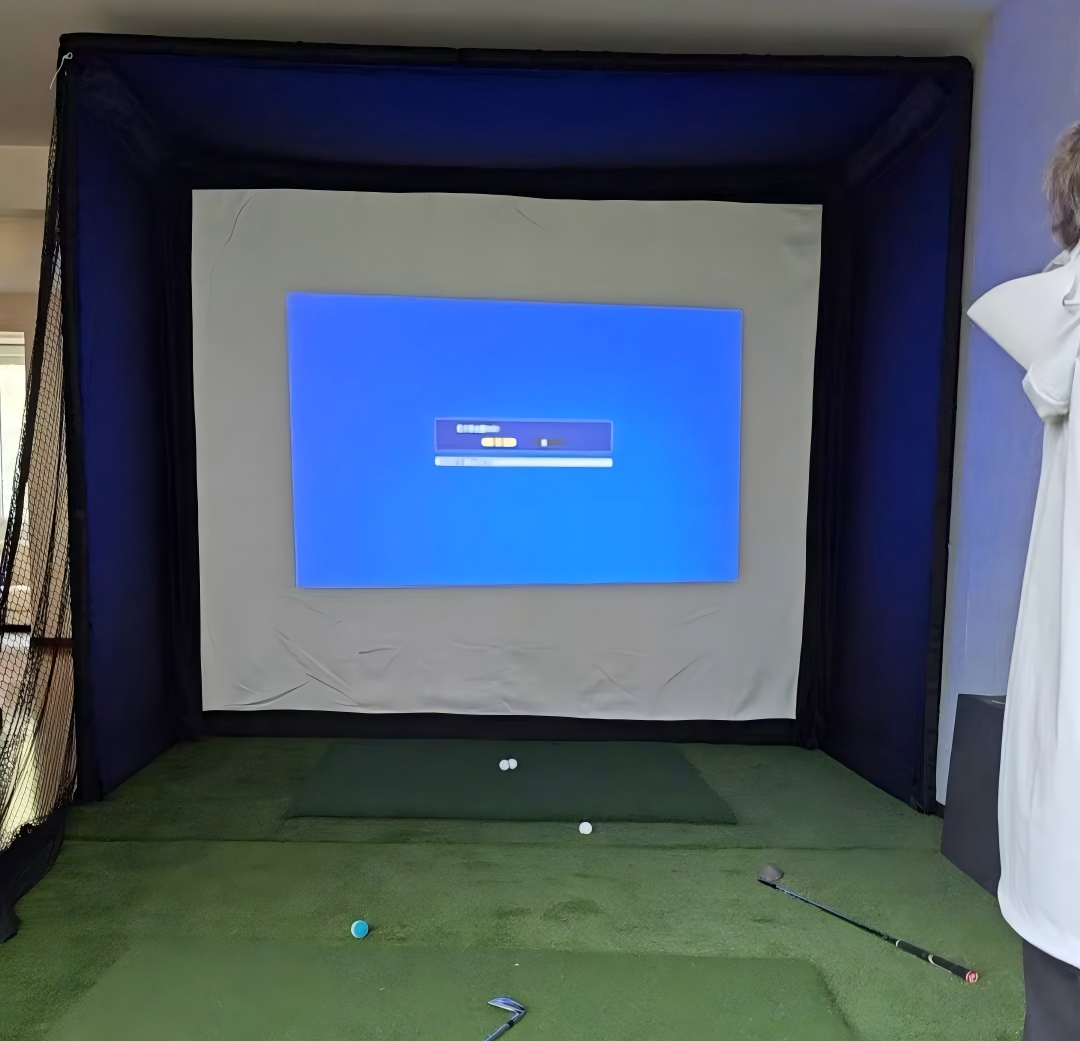
When the device ratio or projector setting does not match the screen size, the projected image may not fully cover the simulator screen.
As shown in the picture above, the projection does not fill the whole screen area. This situation is not usually caused by the screen fabric itself. In many cases, it is related to the output device, projector ratio, throw distance, or display setting.
For example, if an iPad, tablet, laptop, or simulator device outputs a different aspect ratio from the screen, the image may only cover part of the impact screen. Even if the screen fabric supports high-resolution projection, the final image size still depends on the equipment setup.
Example: Full Screen Projection Effect
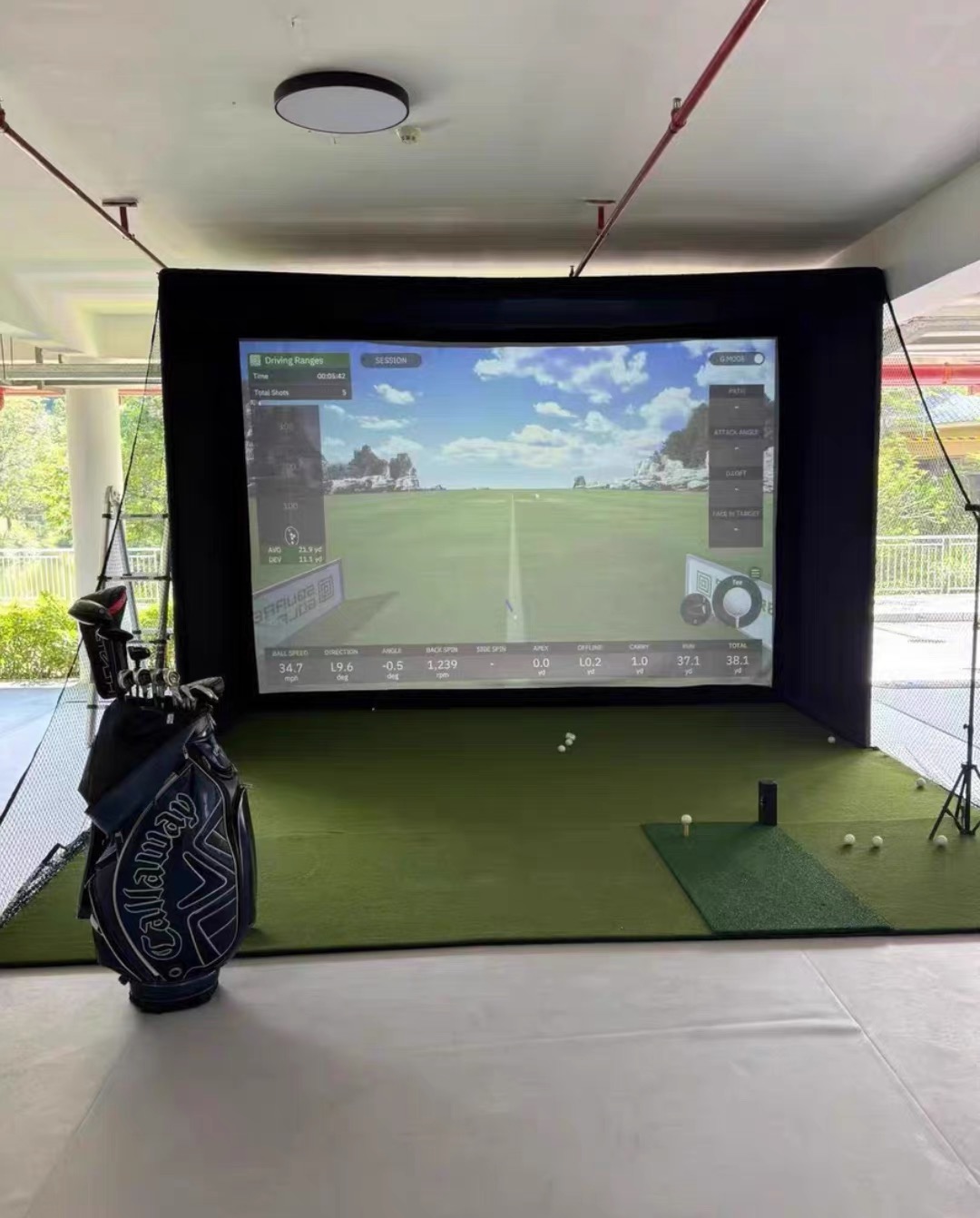
When the projector, device ratio, screen size, and frame size are properly matched, the projection can cover the screen more completely.
The second picture shows a better full-screen projection result. This kind of effect usually requires the projector, display source, screen size, and enclosure frame ratio to work together.
This is why we suggest customers confirm the projector model, device output ratio, room size, installation distance, and required screen size before ordering a golf simulator enclosure or impact screen.
The Screen Supports Up To 4K Projection
Our golf simulator screen fabric is designed for indoor golf simulator rooms, golf enclosures, golf cages, golf training studios, and commercial simulator bays. It can support clear projection performance up to 4K.
However, the actual pixel resolution is not decided by the screen alone. It depends on the projector and the connected device. If your projector supports 4K and your device outputs a 4K signal, the screen can show a higher-quality image. If the device only outputs lower resolution, the final projection will also be limited by that device.
Why The Image May Not Fill The Whole Screen
There are several common reasons why the projection may not fully cover the golf simulator impact screen.
- The projector aspect ratio does not match the screen ratio.
- The device output ratio is different from the simulator screen size.
- The projector throw distance is not suitable for the screen size.
- The projector zoom, focus, or keystone setting needs adjustment.
- The image output may be limited by iPad, tablet, laptop, or software settings.
If the image does not cover the whole screen, it does not mean the golf impact screen fabric has a problem. Most of the time, it is related to the projector, display source, aspect ratio, installation distance, or projection setting.
Lighting Also Affects Projection Quality
Lighting is another important factor for golf simulator projection. If the room is too bright, or if strong light shines directly onto the impact screen, the projected image may look lighter, less clear, or lower in contrast.
Side lights, ceiling lights, windows, and reflective surfaces can all affect the final image. Even with a good projector and a high-quality golf simulator screen, poor lighting control may reduce the projection effect.
- Strong ambient light may make the image look faded.
- Direct light on the screen may reduce image contrast.
- Darker surroundings usually help improve projection clarity.
- The projector brightness should match the room lighting condition.
The Better Solution: Custom Screen And Frame Ratio
To get a better full-screen projection effect, the best solution is to customize the golf simulator screen and enclosure frame according to your actual equipment.
Before production, customers can confirm the projector model, device output ratio, room size, screen size, and installation distance. Then the simulator screen and frame can be designed to better match the equipment ratio, helping the image cover the screen more properly.
If you want a better full-screen projection result, do not only choose a screen size by feeling. It is better to customize the simulator screen and frame ratio according to your projector, simulator device, room space, and display output setting.
How To Improve The Final Projection Effect
- Choose a projector that matches the screen size and throw distance.
- Confirm the output ratio of your computer, iPad, laptop, or simulator system.
- Adjust projector zoom, focus, keystone, and display settings.
- Control room lighting and avoid strong light directly hitting the screen.
- Customize the golf simulator impact screen and frame size according to your equipment.
For B2B buyers, distributors, and golf simulator project customers, choosing the right screen is only one part of the full setup. The projector, software, golf hitting mat, enclosure frame, lighting, and room size should work together to create a better indoor golf experience.
If you are planning a golf simulator room, golf enclosure, indoor golf practice bay, or commercial golf simulator project, we can help recommend suitable golf impact screens, custom enclosure frames, golf hitting mats, netting, and related golf training products based on your equipment and setup requirements.